In MyDelta, you can process Drops multiple times, beginning with the first day of the term through the final day to drop with a "W" notation on the transcript. To learn more about requirements for dropping students, please review the .
Video Tutorial: Dropping Students

Drop a 鈥淣o Show鈥� Student
A 鈥淣o Show鈥� is a student who did not attend the first day of classes. To drop a 鈥淣o Show鈥� student:
- Login to and click on the Faculty Center icon.
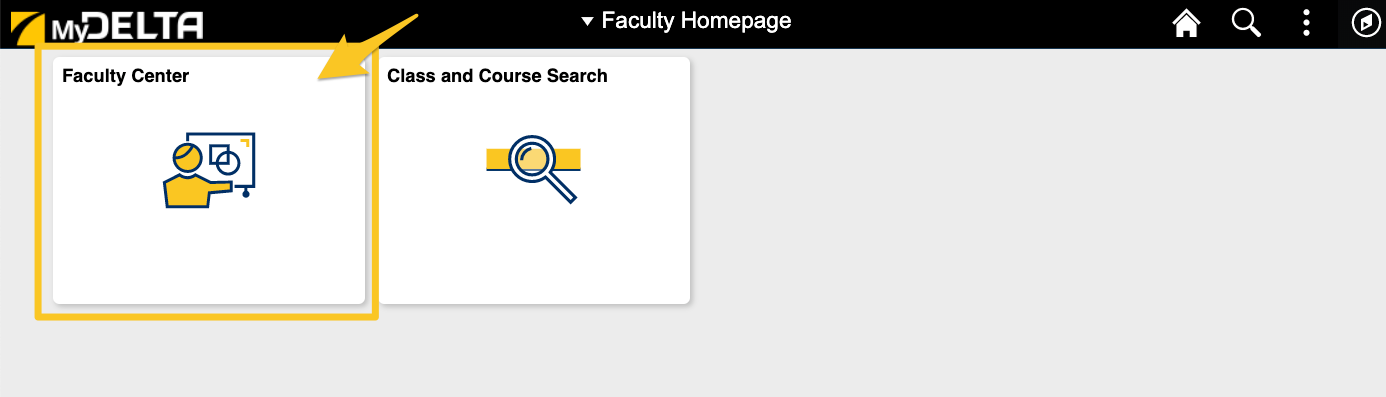
- A new page will load with your Teaching Schedule.
- From your Teaching Schedule, click on the Class Roster Icon for the class the 鈥淣o Show鈥� student is enrolled in.
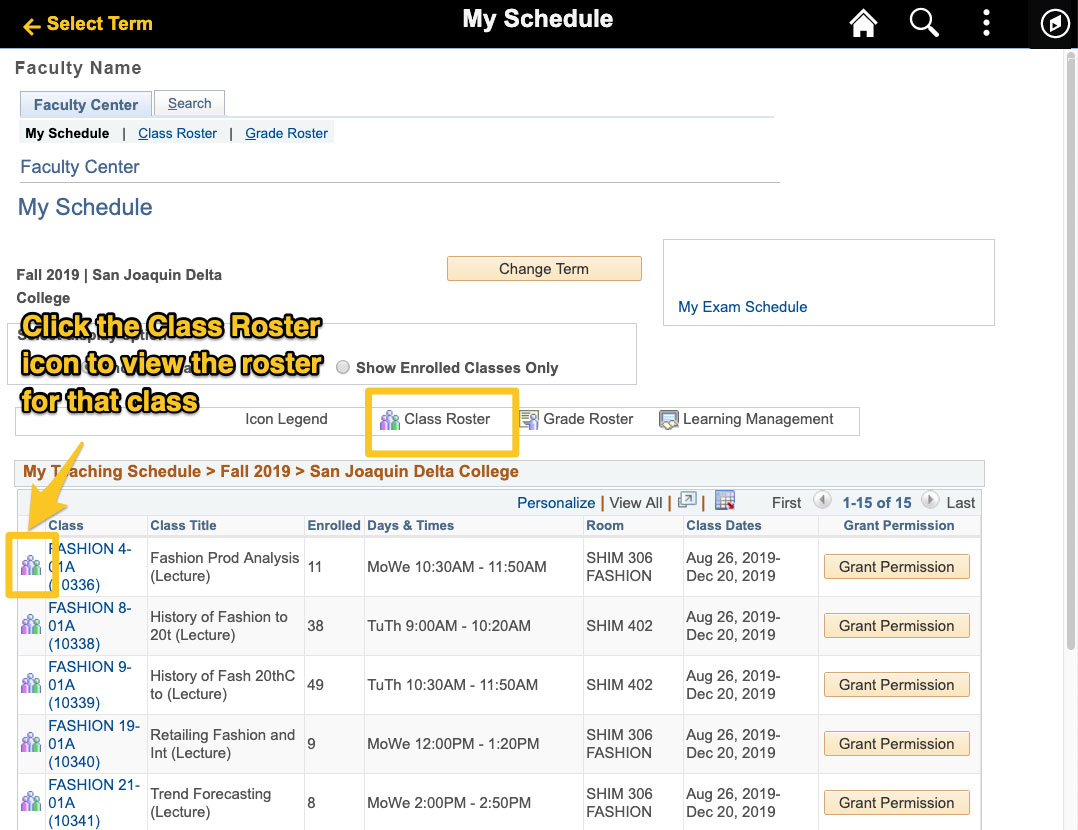
- When the Class Roster loads, it will display all the names students who have enrolled in the class (enrolled, dropped and waitlisted). You can use the Enrollment Status dropdown to only view students who have enrolled in the course. (Need help with the Class Roster? .)
- Find the name of the 鈥淣o Show鈥� student.
- Under the Drop column, click the Drop Button.

- A modal will open with a confirmation. Click Ok to process the Drop.
Drop Excessive Absences
To drop students who have met the requirement for excess absenteeism:
- Login to and click on the Faculty Center icon.
- From your Teaching Schedule, click on the Class Roster icon for the class the 鈥淣o Show鈥� student is enrolled in.
- When the Class Roster loads, it will display all the names students who have enrolled in the class (enrolled, dropped and waitlisted). You can use the Enrollment Status dropdown to only view students who have enrolled in the course. (Need help with the Class Roster? .)
- Find the name of the student who needs to be dropped.
- Under the Last Day of Attendance column, click the Date Picker icon and select the date the student last attended class.

- Once the Last Day of Attendance has been entered, a new column called Drop Exs.Abs. will appear to the left.

- Click on the Drop Exs.Abs. Button
- A modal will open with a confirmation. Click Ok to process the Drop.
Reinstate a Student
For students who are in a status of dropped, this will add the students back into the class as of the first day they added the class.
- Login to and click on the Faculty Center icon.
- From your Teaching Schedule, click on the Class Roster icon for the class of the student you want to reinstate.
- Find the name of the student who needs to be reinstated and click on the Reinstate button.
- A modal will prompt you to confirm the reinstatement. You may cancel or proceed with the enrollment.